Frequently Asked Questions
Applies to Version 3 Series
Q1. How can I delete student Name?
Answer: On Settings Menu. Select Specific Fess Settings. Then Select the student Name to be deleted, then click Delete button at the top
Q2. I made a mistake when recording fees. How can I change it?
Answer: Any changes regarding any receipt or payment transaction can only be cancelled. It can not be altered or changed. To cancel the receipt number, Go to Administrative Menu and select Cancel Transaction. Then enter Document number in the box provided and click a search button. If the document is in records, it will appear as shown below:
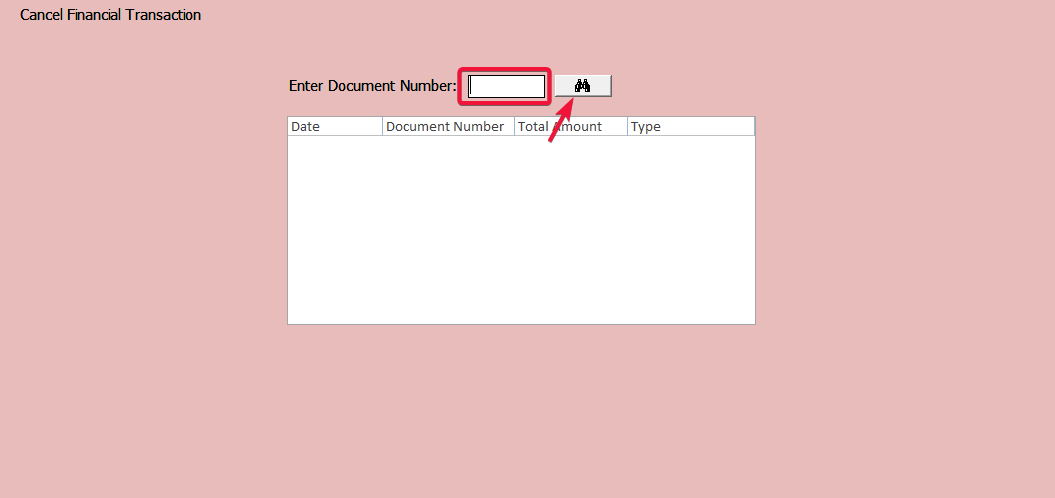
Then simply selecte document and click Cancel button. You will get a confirmation that the record has been cancelled.
Q3. I erroneously selected a wrong guardian name during admission process. How can I change it?
Answer: From Administrative Menu, select Guardian Information. Select the correct guardian name and then select the child's name on the right. Click Add button to associate the child with the guardian. You can achieve the same results by selecting Student Information on the side menu then select the desired student and somewhere at the bottom there is a guardian selection box. Select the correct name and then click Commit to Change button at the top
Q4. How can I enter student photo?
Answer: Student Photos can only be added or changed at the Server Computer. From Administrative Menu, Select Student Information. Then select desired Student and Click Change Picture button below the photo frame. Another window will pop up with a picture or portrait. If you hover your cursor over the picture or portrait, a camera and a folder images will appear.
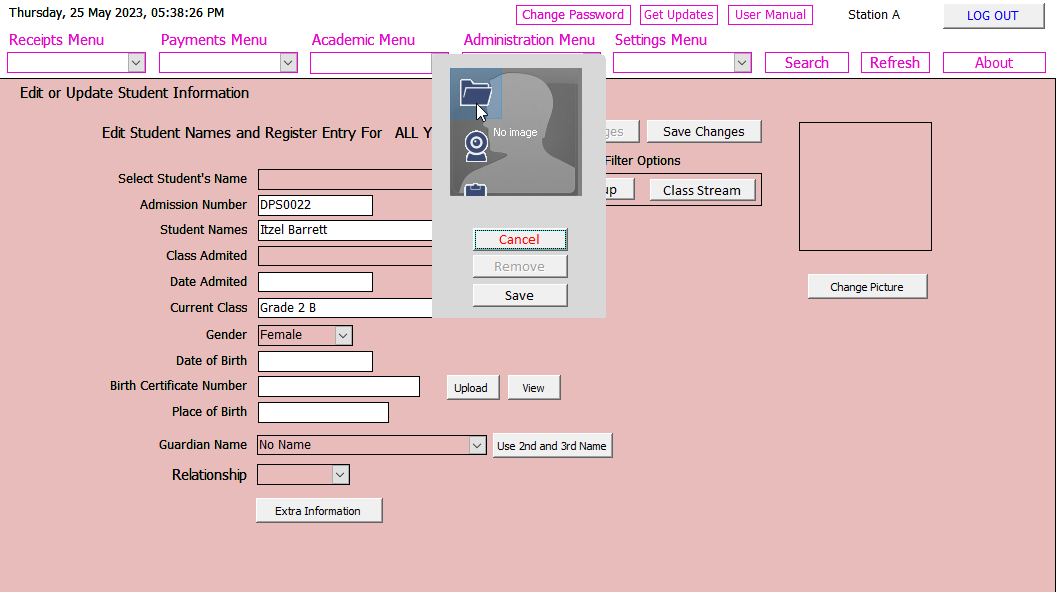
Click camera if you want to grab picture from your webcam (if attached) or click the folder to open folders containing student's photos in your computer. Simply select the picture and then click Save button. Finally click Save Changes button. The student photo will appear on the photo window .
Q5. I have moved the whole class to a new class using group move, but there are two students whom are required to repeat. How do I move them back?
Answer: From Academic Menu, select Change Student's Class Then Select current enrollment year. Then on the left window select the class of the two student required to repeat. On the right window Select the class you wish to move them to. Then on the left window select the names and then click the Arrow (pointing to the right window) to move the student to the right window. Accept action when prompted.
Q6. I have mistakenly move a student to “Those who left School” list. How can I reverse my action?
Answer: Go to the same page. I.e. From Settings Menu then Specific Fees Settings then select the student and on Status field select first Radio button "In School" then click Save changes button.
Q7. When receiving regular fees, I realized the fees due for the student I selected are not correct. What went wrong?
Answer: The problem would be in the fees structure (or profile) assigned to that student. To correct the problem, from Settings Menu, select Specific Fees Settings. Then select the student name and Change the Fees Profile. Then click Save Changes button.
Q8. When posting student scores, I see the default value is zero. How do we deal with students who are not required to do a particular subject?
Answer: A score of zero will be ignored by the system and will be treated as not required to attend. If the student actualy got zero marks, then you will be required to give a very small score (say 1% of the maximum possible marks) so that the system will count as a subject required to attend, yet the score is as good as zero.
Q9. A guardian comes with a receipt showing that a specified fee has been paid, yet the receipt number does not show in the fees statement. What is happening?
Answer: The receipt must have been cancelled after being printed and issued; but was not retracted from the guardian. To verify, select from Receipt Menu and then select Receive School Fees. Click Find Receipt button to open another window. Enter the receipt number and click Search button. When the receipt appear, click View button; If the receipt was cancelled, the word “CANCELLED” (in red) will be stamped near the top of the receipt.
Q10.I made a mistake while recording student scores. How can I correct the mistake?
Answer: Just go to Academic Menu and select Edit Performance Record. Then select Class, Term, Exam and Subject Name using drop-down menu and click "Show" button. Make necessary correction and save again. Please note, you will not be able to edit or make any correction if you were not the one who saved the earlier entered scores record.
Q11. The person who recorded student score is not around and I need to correct some entries. What should I do?
Answer: Let System administrator reset the password of that person. Then log in using the name of that person and enter default password of 123. Make necessary changes and save.
Q12. While filling admission form, the system reports the admission number entered is already used by another student. Who is this student?
Answer: You can use search tool at the top to search using any criteria. Click the Search button on a search tool. On the Filter the field drop down box, select “Adm#” criteria then enter in the next box the admission number you wish to search. As you type, the student’s name using that admission number will be on top of the list. If the student name does not show on the search tool, then the name will be either in the “Those who left” list or “Those who graduated” list. Please note, the system reserves the admission number while the student name is in either of these lists. To remove the name completely and recover the admission number, you need to delete them using procedure explained in Q2 above.
Q13. There seems to be duplicate guardian names in the guardian list. How can I remove the duplicate?
Answer: From Administrative Menu, select Guardian Information. Then select the duplicate name and ensure no student name is associated to that name. Then click Purge button and accept deletion.
Please Note: If there is any name associated with the guardian, the purge will not remove that name
Q14. Is it possible to get a list of all students on a same fee structure?
Answer: Yes it is possible. Launch a report tool and log in. Then select Financial Reports. Financial report page will open. Then select Fees Profile by Class or Fees Profile Entire School. If you selected by Class, a list will appear on the right. Select a class and click View and Print button. If you selected Entire School Option, you will get list for whole school.
You can also get a similar list from "Settings Menu". Select "Create Fee Names and Fee Groups" . Choose the Fee profile and click "View List" button.
Q15. This morning when I started the software, I was greeted with the message “The Software is not registered”. What do I do?
Answer: For a trial installation (i.e. not yet registered), one of the three things could have happened:
- Software record in the windows registry could have been altered (by a person or virus)
- System date has been moved forward or extremely backward.
- The 30 days Trial Period has elapsed.
For the registered installation, the only reason could be a faulty or erratic Network Identification Card (NIC) in your computer.
Solution: The first problem, if not manually altered, suggest virus activity present in your computer. You need to install and or update your anti-virus software and thoroughly scan your computer. For the second problem, if you noticed the system date has changed on its own to a date of the past, the CMOS battery (that powers the CMOS memory) is faulty and should be replaced. For the last problem, Please go to Registration page and register by paying required fee.
If your installation is registered and you have valid unlock code, please refer to section 66 (Program Reset Procedure) on page 57 in the user manual for instructions on how to fix that problem.
Q16. I need to add another workstation. How do I do that?
Answer: The licensing information you received after paying registration fee will stipulates the number of Installation you can install. If you wish to add any extra installation, additional fee will be come due. Please contact us or our agents for directions.
Q17. Is there an annual renewal fee after paying for registration fee?
Answer: There is no renewal fee. You paid for a perpetual (continuous) license that will remain valid for ever.
Q18. What about updates. Will I be required to pay for any future updates?
Answer: Updates on the main version will be forever free. That means all updates beginning with v3 (e.g. v3.01, 3.02 etc) will be free. Those beginning with v4 (not yet available) will attract a reasonable upgrade fee when it becomes available.
Q19. Can my copy be customized?
Answer: Yes we do customization on reports generated by Reports tool. If you need any customisation, please email us and give us all the details (including the formulas if applicable) that will be required on your reports. We will then send you the cost for the work and approximate duration to complete. A 50 % of the cost must be paid in advance.
Q20. How can I back-up my data?
Answer: Whenever you exit the software on the Server computer, a back up is created on the folder specified on your settings page. You can change the back up location to either a folder in your external drive or folder in another computer on your network. Consider also using cloud or FTP back up. There are a number of free cloud storage services out there that you can use to back up your data. Our agents can assist you in setting up a cloud or FTP back up.
Q21. Today there was a power surge followed by a blackout that caused our computer to go off; but when the power returned, Savvy School could not start. Instead we got an error message that says "This Software is not Registered". What do we do?
Answer: The error is caused by your computer’s CPU reporting different MAC address from the address initially registered during software installation. To reactivate your License, please follow the following 7 steps:
- Disconnect from internet (if connected) and restart your computer.
- Change your computer system date to 1st January 2012.
- Go to “C:\Savvy School v3.0” folder and look for a file named “Program Reset Tool”.
- Double-click that file once. If you correctly changed the system date, you will get a message “OK”.
- After that, change the computer system date back to today’s date.
- Then start Savvy School as usual.
- When prompted to enter unlock code, please enter the same code that was issued by developers.